01 / 04
Start with what’s already yours.
Your sounds. Your transitions. Your favorite images. Bring your own folders into one familiar panel, without reorganizing your entire collection.
Original files stay on your computer.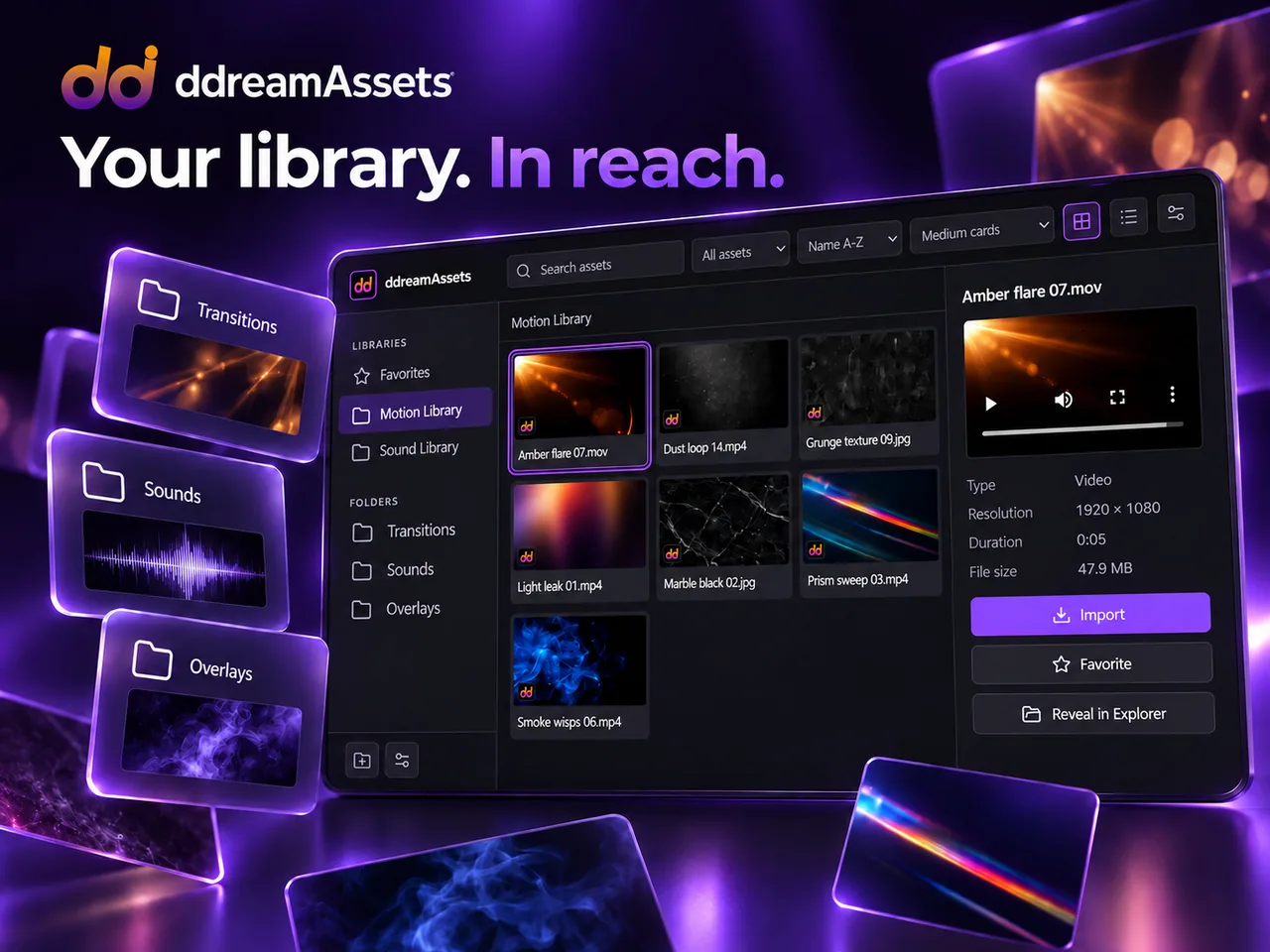
 ddreamAssets
For Premiere Pro & After Effects · Windows
Sounds, videos and images in one familiar panel. Find what fits, check the preview and keep creating without breaking your flow.
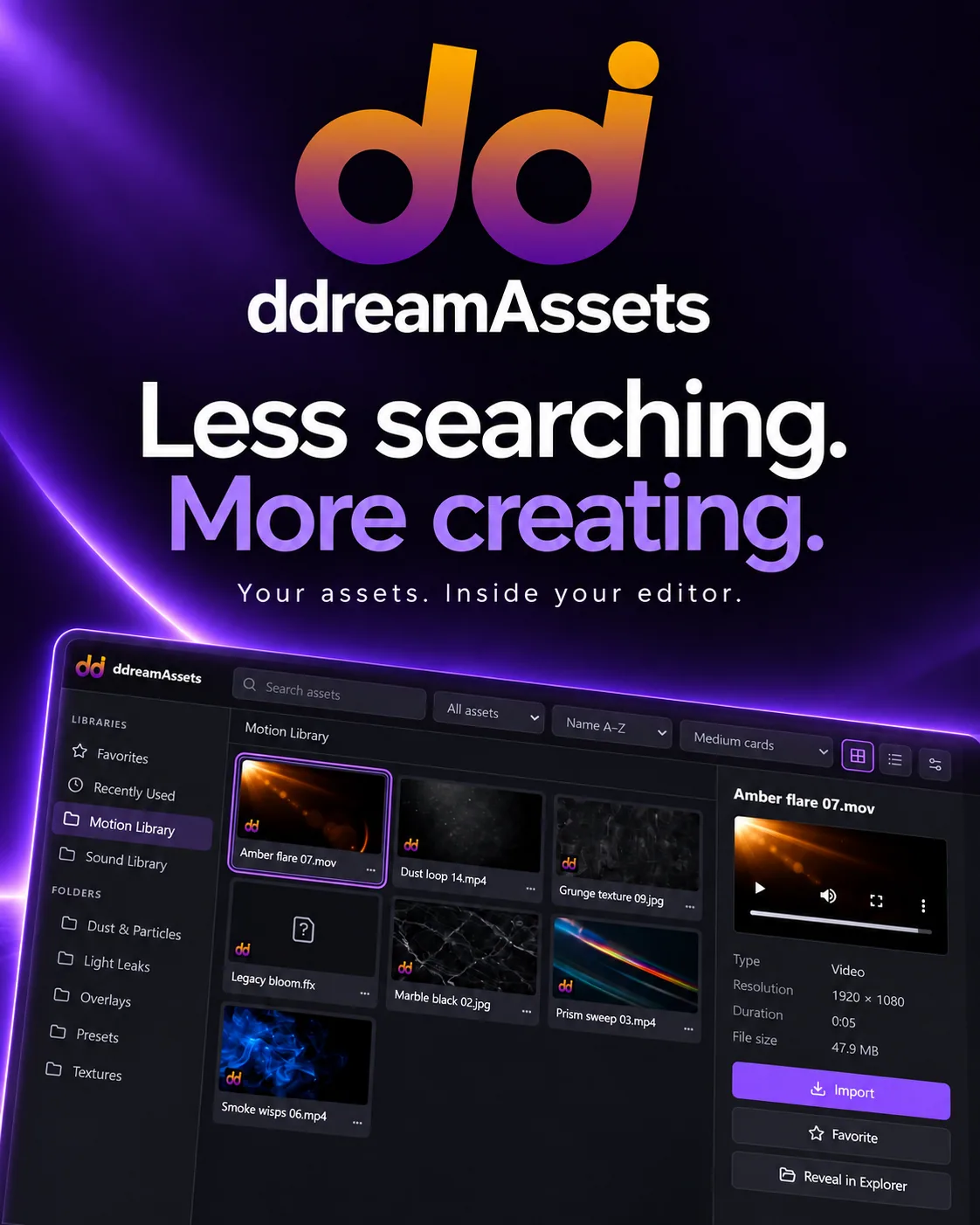
Less searching. More creating.
Stop trying to remember which folder holds that sound. Bring your working collections into one panel: search by name, check the preview and return to your favorite assets.
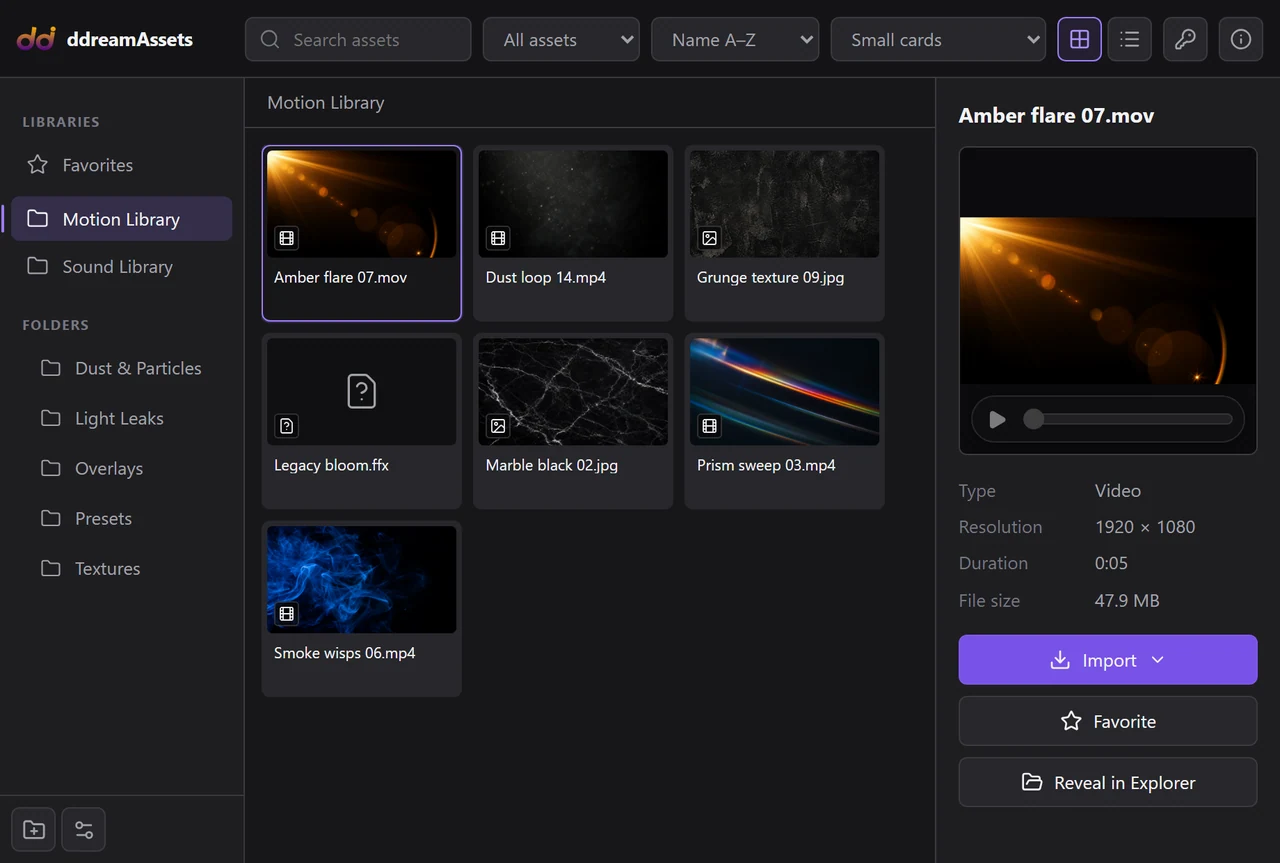
One panel for your media
From a small sound effect to your favorite transition, keep the right material within reach.
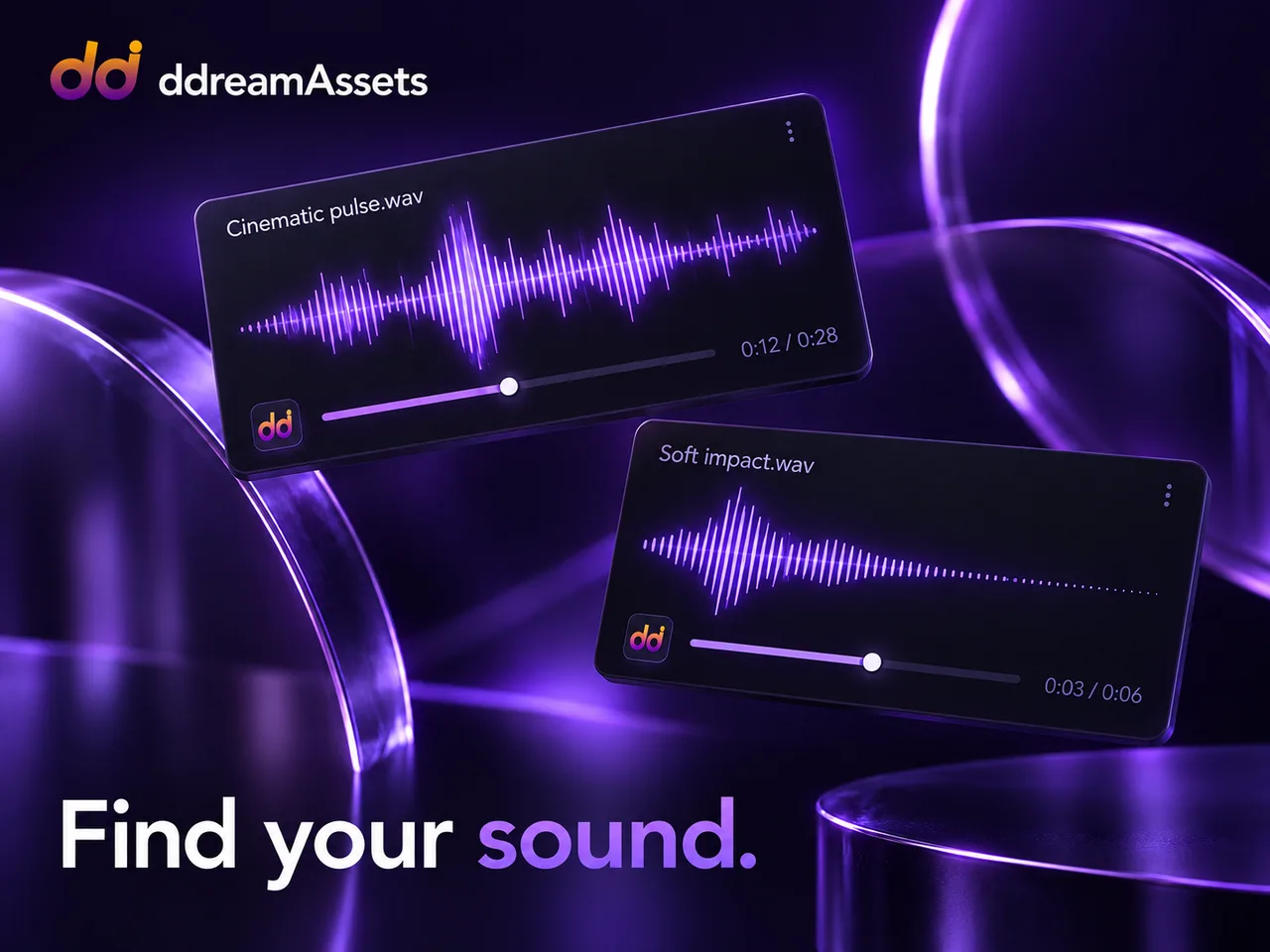
Use the waveform to find the right sound, listen and seek to the moment you need. Playback, pause and seeking stay within reach in both Premiere Pro and After Effects.
Preview playback stops after import.
From your folders to your project
Scroll to explore
Your sounds. Your transitions. Your favorite images. Bring your own folders into one familiar panel, without reorganizing your entire collection. Original files stay on your computer.
Search by name, check a video preview or explore an audio waveform. Find the right moment before it reaches your timeline. Ready previews are cached for reuse.
Import from the panel. Or drag onto your Premiere Pro timeline. Preview playback stops after import, so you can hear your edit clearly. Less switching between windows.
Premiere Pro for the edit. After Effects for motion. Keep your familiar library and workflow in both, with shared activation on the same Windows account and computer. One panel for Premiere Pro and After Effects.
Your sounds. Your transitions. Your favorite images. Bring your own folders into one familiar panel, without reorganizing your entire collection.
Original files stay on your computer.Search by name, check a video preview or explore an audio waveform. Find the right moment before it reaches your timeline.
Ready previews are cached for reuse.Import from the panel. Or drag onto your Premiere Pro timeline. Preview playback stops after import, so you can hear your edit clearly.
Less switching between windows.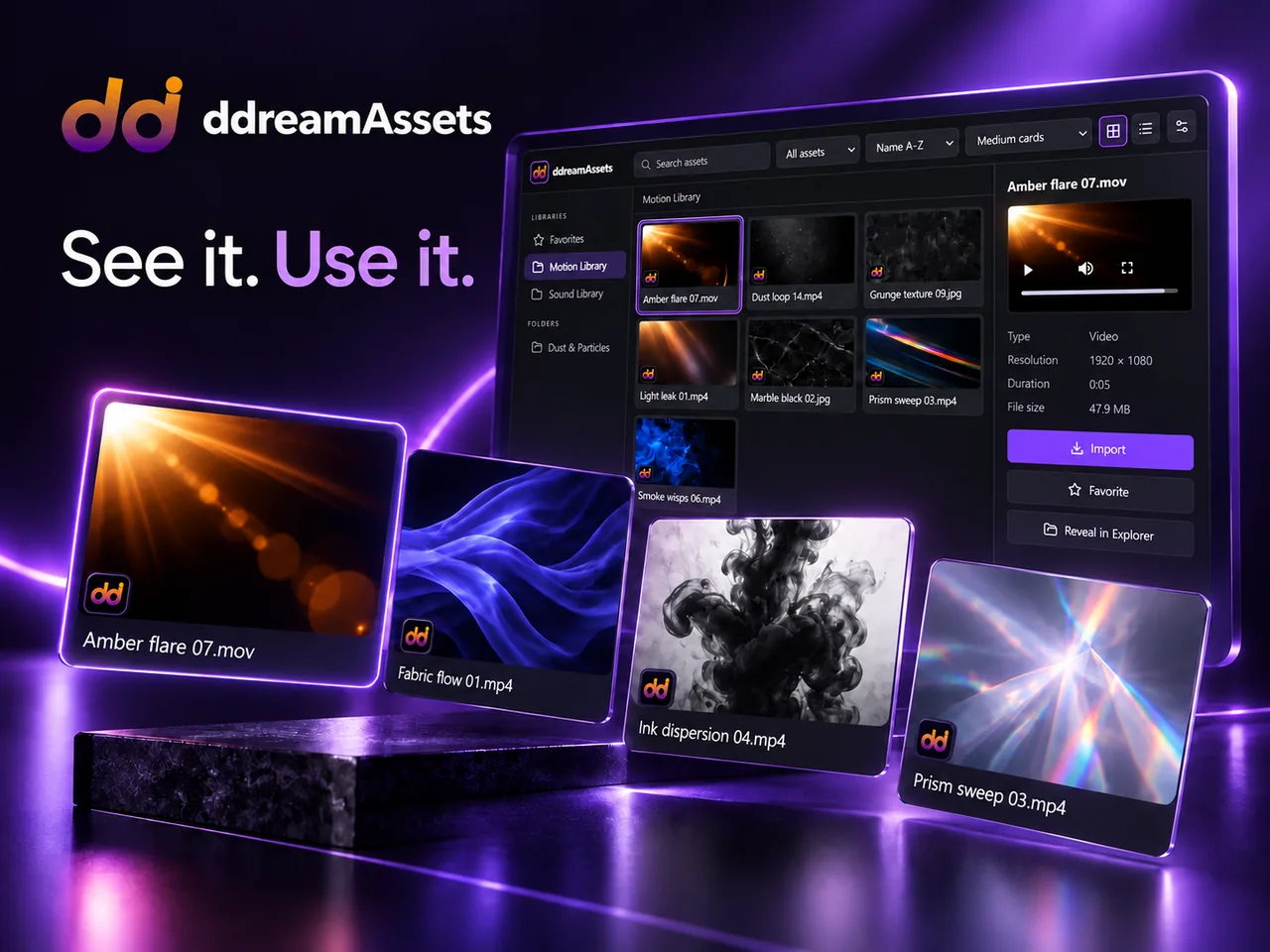
Premiere Pro for the edit. After Effects for motion. Keep your familiar library and workflow in both, with shared activation on the same Windows account and computer.
One panel for Premiere Pro and After Effects.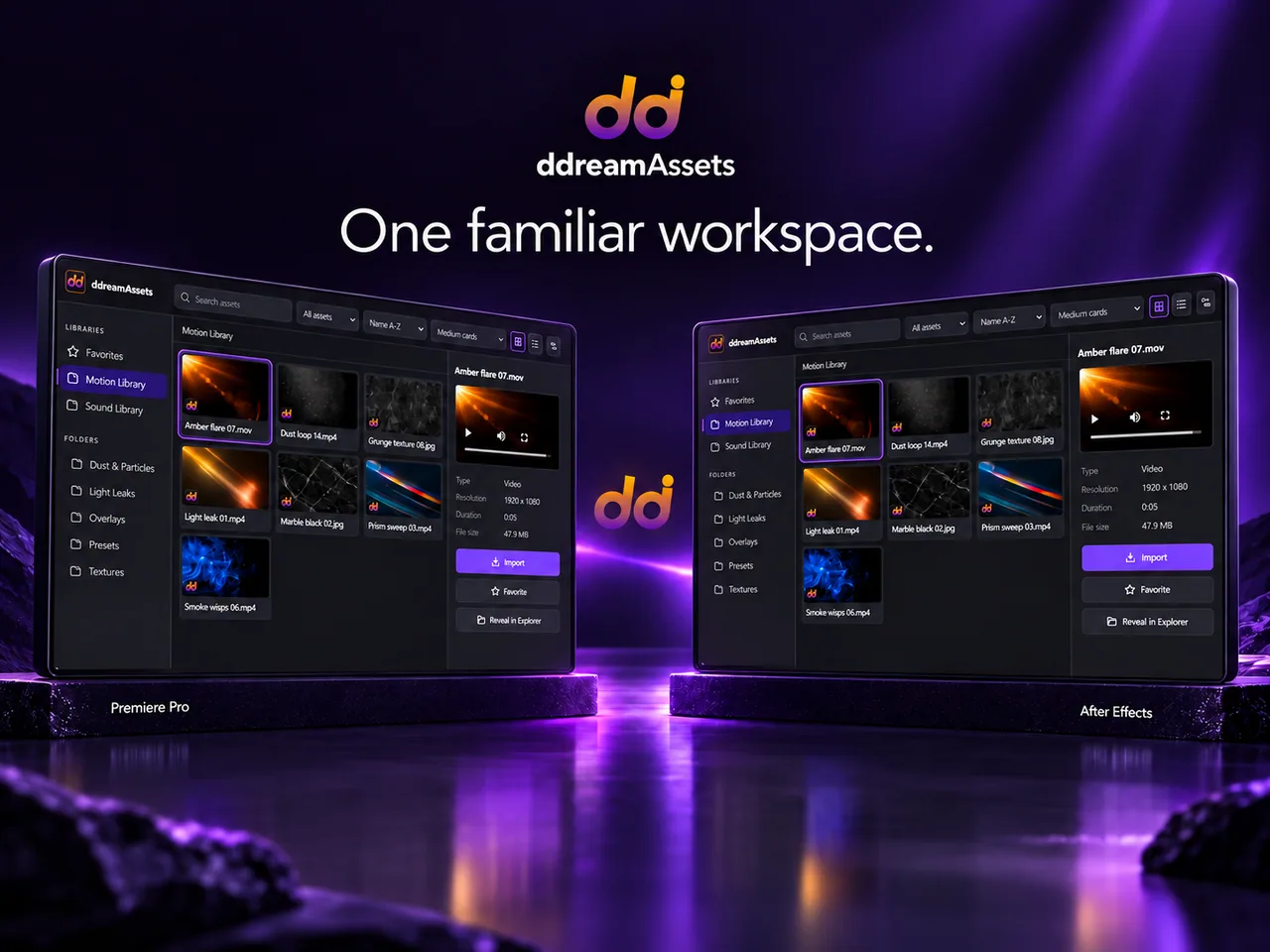
Two apps. One familiar workflow.
Your familiar library, inside Premiere Pro and After Effects. On the same computer and Windows account, activation carries across both applications.
Current release for Windows x64
Tested in Premiere Pro 26.3.2 and After Effects 26.3.0. A macOS version is not available yet. One key supports up to two active devices. Both editors on the same computer and Windows account use one device slot. Adobe is sold separately.
A simple start
ddreamAssets installs as an Adobe extension. Keep your library inside the editor instead of another window.
Close your Adobe applications and install the extension package with a compatible ZXP installer.
Open ddreamAssets from the Adobe extensions menu and enter your key. An internet connection is required for the first activation.
Connect your media library. After initial preparation, generated previews are kept in the cache.
Get ddreamAssets
Your media library, right inside Premiere Pro and After Effects.
Before you begin
An Adobe extension for your own media library: search, favorites, previews and import. A pack of sounds, videos and images is not included — you connect your own folders. The assets in the illustrations are examples.
No, if both editors run on the same computer and Windows account. They share activation and use one of the two device slots included with your key. Activate a second computer separately using the same key.
Your library and ready previews are stored locally. Internet is needed for initial activation and periodic license verification. You do not need to activate again every time you open the panel.
Source files stay in your chosen folders. Some formats may need a compatible copy for import. When moving a project, keep its linked media or collect the files using Adobe’s project tools.
When you first add a folder, generating thumbnails and audio waveforms can take time. Finished previews are saved and reused until the source file changes.
It checks connected folders, adds new files to the library and removes entries for deleted files. Previews for unchanged assets are kept. Refresh does not delete your source files or require the whole library to be generated again.
Install the plugin on your new computer and activate it with your key. If both device slots are in use, open License settings → Manage devices on an already activated computer and free a slot by removing the old device from the list. Device management requires internet access. If you no longer have access to any activated computer, contact support. Transfer your media separately — the license does not store your library in the cloud.
The current ddreamAssets release is for Windows x64. A macOS version is not available yet.
Images: JPG, JPEG, PNG. Audio: WAV, MP3, M4A, AAC, AIF, AIFF, FLAC, OGG. Video: MP4, MOV, M4V, WEBM, MKV, AVI, MXF, MTS, M2TS. These are recognized extensions, not a guarantee that every file can be previewed or imported: compatibility depends on the codec and your installed Adobe version.
Preview playback of some 60 FPS clips and other incompatible videos is unavailable in the current release. Automatic conversion for preview is disabled. An unavailable preview does not prevent import or dragging if the file is accessible and supported by Adobe. Frame rate — 24, 25, 30 or 60 FPS — does not determine compatibility on its own. Card thumbnails and video playback are separate features: a thumbnail does not guarantee playback.
You can try a separate MP4 copy with H.264 and 8-bit SDR video, then add and test it in the plugin. This is a compatibility check, not a guaranteed solution. Keep the original: simply lowering the frame rate does not guarantee a fix. Do not replace media already referenced by an Adobe project.
ddreamAssets
Give your attention back to the reason you opened your editor.
See purchase options